



Got a shiny new iPhone 18 Pro and ready to set it up? Great. But before you get excited, there’s one thing standing between you and a smooth start: your WhatsApp chats.
They won’t transfer from Samsung on their own. If you want to transfer WhatsApp from Samsung to iPhone 18 Pro without losing years of conversations and photos, you need a plan.
This guide compares three practical methods, from a no-reset desktop tool to Apple’s own app to a simple chat export.
What to Know Before Transferring WhatsApp
Moving WhatsApp from one Android phone to another? Simple, right? Same system, same backup format. Moving it to an iPhone is different. Android and iOS save WhatsApp backups in totally different ways, so the app can’t just copy files across like it normally would.
Apple does offer an official fix through the Move to iOS app. But it only works if you use it before finishing your iPhone’s setup, and both phones need to sit close together on a steady Wi-Fi connection. Already set up your iPhone? Then this route usually means wiping it and starting over, which is a real headache when all you wanted was to transfer WhatsApp from Samsung to iPhone 18 Pro without a full reset.
That’s the gap Tenorshare iCareFone WhatsApp Transfer was built to fill.
How to Transfer WhatsApp from Samsung to iPhone 18 Pro
Don’t know how to transfer WhatsApp from Android to iPhone? You’ve got three options:
- A desktop tool that skips the factory reset.
- Apple’s own free Move to iOS app.
- WhatsApp’s Email Chat feature for saving individual conversations.
Each one solves a different problem. Let’s go through them.
Method 1: Best Way to Transfer WhatsApp from Samsung to iPhone Without Factory Reset
Best for: Anyone whose iPhone 18 Pro is already set up, or anyone who just doesn’t want to erase and restart their new phone to move chats over.
Tenorshare iCareFone WhatsApp Transfer is a desktop program made for exactly this situation. It’s built to transfer WhatsApp from Android to iPhone even after the iPhone has already been through setup. A few things worth knowing about it:
- Skips the factory reset: You can transfer WhatsApp from Android to iPhone after setup, no erasing required.
- Lets you pick what moves: Choose specific chats, photos, and videos, or merge old and new WhatsApp data instead of overwriting everything.
- Works across brands: Built to handle Samsung and other Android phones moving to any current iPhone, including a fresh WhatsApp transfer from Samsung to iPhone 18 Pro setup.
Here’s how it works:
- Download and install iCareFone WhatsApp Transfer on your pc. Then plug in both your Samsung phone and your iPhone 18 Pro with USB cables and click “Transfer.” This is the first step to transfer WhatsApp from Samsung to iPhone 18 Pro.
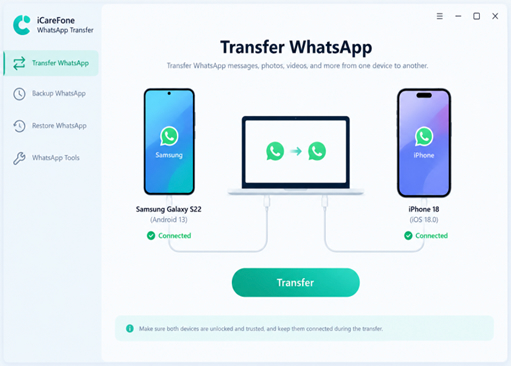
- Follow the steps to back up WhatsApp on your Samsung phone. At some point, you’ll need to scan an end-to-end encryption key.
- When the backup is complete, select the chats and attachments you want to transfer, and make sure WhatsApp is login on your iPhone.
- Click “Restore” and let the program work. Your iPhone 18 Pro will restart once the transfer wraps up.
Method 2: Transfer WhatsApp from Samsung to iPhone with Move to iOS
Best for: People setting up a brand-new iPhone 18 Pro who haven’t gone through the setup yet.
Move to iOS is Apple’s own free app, and it’s the easiest option if you’re starting fresh. It’ll transfer WhatsApp messages from Android to iPhone for free, plus your contacts, photos, and a bunch of other stuff- all in one shot while you’re setting up the phone.
The one downside: this only works during initial setup. It won’t work when your iPhone is active.
Here’s how it works:
- Grab the Move to iOS app from the Google Play Store on your Samsung.
- Start setting up your iPhone 18 Pro. When you reach “Transfer Your Apps & Data,” tap “From Android.”
- Open Move to iOS on your Samsung phone, click Continue, and accept the terms.
- Type in the code your iPhone shows you, choose what to bring over, including WhatsApp, then just wait it out on both devices.
Method 3: Transfer WhatsApp from Samsung to iPhone via Email Chat
Best for: Folks who just need to keep a few important texts handy, not the entire chat history. Keep in mind you’ll only end up with a copy of that single conversation to read later, nothing more.
Email Chat sends one conversation as a text file straight to your email, and you can include the photos or videos too if you want. But keep in mind, this isn’t a real transfer. Your chats won’t show up inside WhatsApp on your iPhone. You get a copy of the conversation you can read later.
Here’s how it works:
- Open the WhatsApp chat you want to save on your Samsung.
- Click on the three dots, then “More,” then “Export chat.”
- Choose “Include Media” or “Without Media,” then pick your email app to send it.
- Send the email to yourself, then open it on your iPhone 18 Pro to view or save the file.
Comparison: Which Method Should You Choose to Transfer WhatsApp from Samsung to iPhone?
Not sure which fits best? The best method depends on your setup, transfer needs, and whether you want a complete migration or only selected chats. The comparison below highlights the key differences so you can choose the option that fits your situation.
| Feature | iCareFone Transfer | Move to iOS | Email Chat |
| Works after iPhone setup | Yes | No, need reset | Yes |
| Full chat history moved | Yes | Yes | No, one chat at a time |
| Factory reset required | No Free | Yes, if already set up | No |
| Cost | Paid, free preview | Free | Free |
| Best for | Full migration. No reset | New iPhone setup | Saving a few chats |
FAQs
- How Can I Transfer WhatsApp from Samsung to iPhone for Free?
Apple’s Move to iOS app is free. You can move WhatsApp chats during iPhone setup. The catch is timing: it only works before you finish the setup process, so it’s really meant for people activating a brand-new phone.
- Can I Transfer WhatsApp from Samsung to iPhone Without a Factory Reset?
Yes, but only if you use a desktop tool like iCareFone WhatsApp Transfer. It connects to both phones at once and moves your WhatsApp data over without wiping an iPhone you’ve already set up, something Move to iOS just can’t do.
- Can Smart Switch Transfer WhatsApp from Samsung to iPhone?
Nope. Smart Switch only works between Samsung and other Android or Samsung phones; it just doesn’t connect to iOS. So if you’re switching from Samsung to iPhone, you have to use Move to iOS, a third-party transfer tool, or WhatsApp’s own export option.
- Can I Restore a Google Drive WhatsApp Backup on an iPhone?
No, iPhones and Android phones use different backup systems. Transfer of WhatsApp messages from Android to iPhone using Google Drive isn’t possible, as WhatsApp can’t read a Google Drive backup on iOS. Some transfer tools are made to pull data from a Google Drive backup and restore it onto your iPhone.
- Will My WhatsApp Messages, Photos, and Videos Transfer to iPhone 18 Pro?
A dedicated transfer tool or Move to iOS can bring over messages, photos, and videos together. Email Chat handles only one conversation at a time, with media as an optional add-on, so it won’t rebuild your whole chat library on the new phone.
Conclusion
There’s no single best way to transfer WhatsApp from Samsung to iPhone 18 Pro; it depends on your situation. Move to iOS is best for a new setup, while Email Chat is best for keeping a small number of conversations. If your iPhone is already set up or you want to avoid a factory reset, Tenorshare iCareFone WhatsApp Transfer is a practical option to consider for moving your chats and media.
