

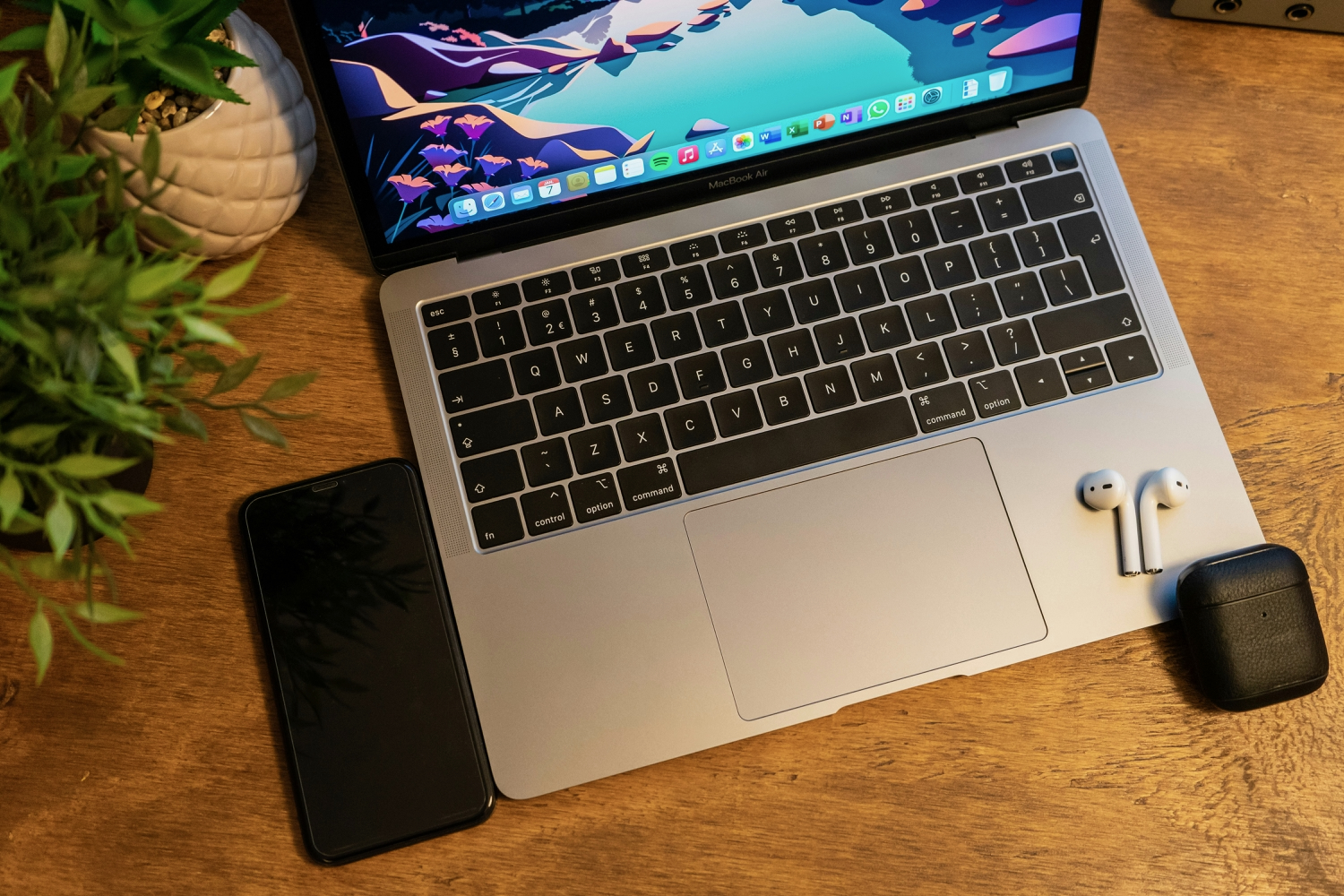


There are situations when you try to use your MacBook, but its trackpad is either barely working, or maybe not working at all.
These issues happen, but when you need to do something, such errors are obviously going to waste time. So it does make a lot of sense to try and fix your trackpad to the best of your capabilities.
What causes trackpad issues?
There are different root causes that come from the trackpad, as you can imagine. For example, there is corrupted software, or some files are corrupted. There can also be physical issues, where the trackpad is dirty. Of course, trackpad problems can also be from glitches within Mac OS, malware or settings/configuration problems.
When you have the trackpad not working properly, it’s imperative to do a quick diagnostic and see what is leading to this problem. Disabling force click is a good idea, and you can also do some diagnostics, too. It might not seem like much, but it allows you to improve your user experience, while figuring out exactly what was wrong.
Disable force click
Enter the trackpad settings and in there, you want to select point and click, and toggle the force click feature on and off. Then you adjust the pressure you want to apply to use force click. You can assess the trackpad gestures and test everything out to see if it all works correctly.
See if there are resource conflicts
You can use the Activity Monitor in order to see what causes the trackpad not responding or lagging problems. It could be due to malware issues, or maybe there are other problems at play. Within the Activity Monitor you can see how the Mac resources are used and any anomalies should be able to stand out in no time.
Restart your Mac
A good idea is to check out this article and try out all the fixes there. With that in mind, before you do anything too complex, make sure that you are restarting your Mac. It should help solve some of the glitches. Of course, if it’s not a glitch, then it will not help that much. But if you are restarting your Mac, it will surely make the process better every time.
Use a Mac cleanup tool
These cleanup tools are great because they allow you to solve all kinds of issues, including any trackpad problems sometimes. So yes, use a Mac cleanup tool because it will improve the overall performance of your device. And chances are, you will be able to fix your MacBook without that much of a concern in most cases. Running these tasks often is a great idea, because it will help make things better, and you can avoid issues down the line.
Update your software
Again, it comes down to doing the type of maintenance not everyone is willing to do. Updating software is handy because it allows you to focus on having all the necessary features and latest info that you are looking for. With that in mind, even small software updates can be helpful, and they can provide excellent results down the line.
Check for any trackpad damage
It could very well be some physical issues, like dirt trapped on the trackpad or some damage. If that’s the case, try to manually clean it. Yes, it doesn’t seem like an issue at first, but it very much can be a problem, and one that you want to address to the best of your capabilities.
Aside from that, you can also use a blow drier. Sometimes, you might have something spilled onto the trackpad, or there are some things you can’t remove yourself. A blow drier might very well solve the issue. That’s especially true if you have liquid damage. It is one of those things that can be rather problematic at first, but addressing those adequately will help more than expected.
There’s the paper sliding method in there as well. The idea is to use note paper or a stiff, yet thin object that can help you dislodge debris from beneath. It’s a great approach because it allows you to eliminate any type of dirt, while still ensuring that your device is running swiftly.
Disconnect any conflicting peripherals
If you have a Bluetooth mouse or keyboard, that might conflict with the trackpad. So it does make a lot of sense to try and solve this issue to the best of your capabilities. The upside is that you can easily disconnect the peripherals in no time, and then see if things are working the way you want them to.
Reset SMC
Sometimes, you will need to reset the system management controller. The SMC is regulating power management and battery charging, so it can solve trackpad issues. If you have an Intel-based Mac, you shut it down, press and hold Shift+Control+Option and the power button, wait for 10 seconds and release. After that, you press the Power button and turn the Mac on. For the time being, you can’t reset the SMC on Macs with Apple Silicon, so keep that in mind.
Check if there is any malware on your Mac
A cleanup tool can also be used to remove malware from your Mac. Whether we like it or not, there are times when you can have malware on the Mac, and such a tool is meant to remove it. it will identify and remove all instances of malware, which in turn will provide a much better result and experience from a performance standpoint.
We believe it’s a very good idea to figure out what fixes you can use for the trackpad issues. Whether we like it or not, issues can arise, so it’s up to us to find out when and how we can solve those problems. The quicker we do so, the better it will be in the end. It’s imperative to not rush and instead just focus on what causes the trackpad problem, then tackle it!
