

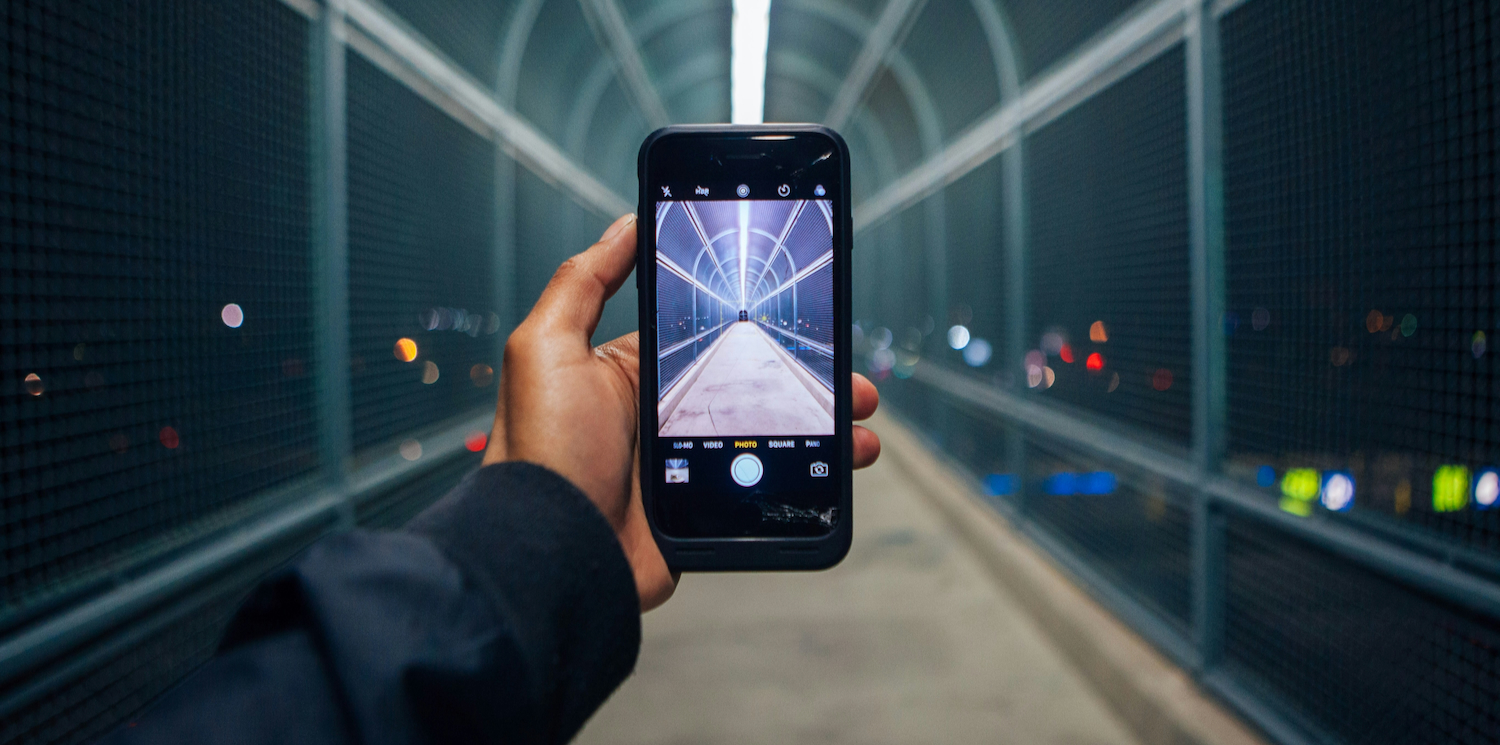


We’ve all been there — you take a great photo on your iPhone, only to realise your storage is nearly full or the image is too large to send.
For Australians trying to save space on their smartphones, speed up sharing, and avoid paying for extra cloud storage, knowing how to reduce photo file size is essential.
Modern phones take high-quality photos, but those large files (often 5 MB to 15 MB or more) can quickly fill up your device. They also slow down uploads and eat into cloud storage limits on platforms like iCloud, Google Photos, or OneDrive.
The good news? You don’t need technical skills. Whether you’re using an iPhone, Android, or Windows PC, there are simple ways to compress images without ruining their quality. Tools like Documents.io file converter can also help, but there are plenty of built-in and free methods too.
Why Photo File Size Matters
Reducing photo size isn’t just about saving space — it impacts:
- Storage: Large photos quickly fill your phone
- Speed: Smaller images upload and send faster
- Cost: Less need to upgrade cloud storage plans
For Australians dealing with variable internet speeds or mobile data limits, smaller images make a noticeable difference.
👉 Quick answer: Reducing photo file size helps you save storage, upload faster, and reduce cloud costs.
What’s Changed in 2026?
Today, image compression is smarter than ever.
- AI-powered tools optimise images automatically
- New formats like AVIF offer smaller sizes with strong quality
- Search engines now analyse images, so over-compression can hurt clarity
The key shift:
👉 Smart compression is better than aggressive compression
Lossy vs Lossless Compression (Simple Explanation)
Understanding this makes everything easier.
🔹 Lossy Compression
- Removes some data to shrink file size
- Best for everyday photos
Formats: JPEG, HEIC, WebP, AVIF
👉 Use this for:
- Social media
- Messaging apps
- Cloud backups
🔹 Lossless Compression
- Keeps all original data
- Larger file size but perfect quality
Formats: PNG, TIFF, GIF
👉 Use this for:
- Logos
- Screenshots
- Graphics with text
JPEG vs PNG – When to Use Each
- JPEG: Best for photos (smaller size, good quality)
- PNG: Best for graphics and transparency (larger size)
👉 Simple rule:
Use JPEG for photos, PNG for design elements
How to Reduce Photo File Size on iPhone
If you’re searching for how to reduce photo file size on iPhone, here are the easiest ways.
Method 1: Use HEIC Format
This is the most effective way to reduce iPhone photo file size automatically.
Steps:
- Open Settings
- Tap Camera → Formats
- Select High Efficiency
This helps reduce photo size on iPhone without noticeable quality loss.
Method 2: Resize or Edit Photos
- Open photo in Photos app
- Crop or slightly edit
- Save again
This can help reduce image size on iPhone quickly.
Method 3: Compress Before Sharing
Some apps let you choose smaller sizes before sending.
This is useful if you want to:
- reduce iphone photo size
- reduce image size iphone
- send via WhatsApp or email faster
Method 4: Use a Compression Tool
If you need more control or bulk compression:
- Helps reduce iphone photo file size in bulk
- Convert formats easily
- Works across devices
This is where tools like Documents.io can be helpful, but it’s optional.
How to Reduce a Photo File Size Free
You don’t need paid tools.
Free options include:
- Built-in phone settings
- Google Photos
- Online compressors
- Basic desktop tools
👉 If you’re wondering how to reduce a photo file size free, these are enough for most users.
How Do You Reduce the MB Size of a Photo on Android?
Android users have simple options too.
Option 1: Google Photos
- Enable storage saver mode
- Automatically compresses images
Option 2: Resize Before Sending
Many phones let you:
- Choose smaller resolution
- Reduce file size instantly
Option 3: Use Online Tools
Best for:
- Batch compression
- Format conversion
Reduce Photo Size on Windows (PC & Laptop)
If you use a PC, there are easy ways to Windows reduce image file size.
Method 1: Paint (Built-in Tool)
If you’re searching How to reduce image file size in Paint, follow this:
- Open image in Paint
- Click Resize
- Reduce dimensions
- Save as JPEG
👉 This is one of the easiest ways to reduce image file size Microsoft tools offer
Method 2: Windows Photos App
For Reduce photo size Windows 11:
- Open image in Photos
- Edit or resize
- Save a smaller version
Method 3: Batch Compression
Best for:
- Large photo collections
- Bulk resizing
👉 Ideal if you need to reduce photo file size in bulk
Practical Tips Before Uploading or Backing Up Photos
Before uploading to social media or cloud storage, follow these tips:
✅ Resize First
Large dimensions = large file size
Shrink width/height before uploading
✅ Choose the Right Format
- Use JPEG for photos
- Avoid PNG unless necessary
✅ Use 75–85% Quality
Best balance between size and clarity
✅ Avoid Uploading Originals
Especially for:
- Cloud backups
✅ Compress in Bulk
Saves time if you have many images
Where Documents.io Fits In
Documents.io file converter can help if you want:
- Cross-device access (iPhone, web, desktop)
- Batch compression
- Format conversion
- AI-assisted file handling
It’s not required, but it’s a convenient option if you regularly manage files or large photo collections.
Conclusion
Learning how to reduce photo file size is one of the simplest ways to free up smartphone storage, speed up sharing, and cut down on cloud costs, especially for everyday users managing large photo libraries.
Whether you’re trying to reduce image size on iPhone, compress photos on Android, or resize images on Windows, the key is to use the right format, resize before uploading, and apply smart compression instead of over-compressing.
For users who need more control or want to handle multiple files efficiently, Documents.io file converter can be a helpful option for compressing, converting, and managing images across devices without complicating the process.
