




Streaming technology has changed how people watch television, giving households access to entertainment, news, educational programs, and other digital content through an internet connection. However, for older adults, choosing a suitable device involves more than picture quality or the number of available applications.
A comfortable remote, readable menus, straightforward navigation, and a manageable setup can make everyday viewing much easier. The best experience comes from matching a device’s features to the viewer’s habits, technical confidence, and television setup.
When comparing streaming devices for older adults, it helps to focus on practical usability rather than complicated specifications. A device should fit naturally into an existing routine without requiring users to learn several unfamiliar controls at once. Reliable connectivity, clear instructions, accessible settings, and helpful voice-control options can all contribute to a smoother experience. With thoughtful preparation and a little practice, older viewers can become more confident navigating digital entertainment and enjoying the features that are genuinely useful to them.
Choosing a Device That Feels Comfortable to Use
A suitable streaming device should make everyday television viewing feel familiar instead of overwhelming. Older adults may prefer a system with clearly organized menus, predictable navigation, and controls that are easy to identify. Before choosing a model, consider how the viewer normally watches television, which programs they enjoy, and whether they prefer using a remote or voice commands.
Remote control design is another important consideration. Buttons with clear labels, a comfortable shape, and a sensible layout can make changing channels, adjusting volume, and opening applications easier. Backlit buttons may also be helpful when watching television in a dim room. However, every viewer has different preferences, so it is worth testing the remote whenever possible and checking whether the main controls are comfortable to reach and distinguish.
Storage capacity, connectivity, and software support also deserve attention, but they should be considered alongside usability. A device with numerous technical features may not be the right choice if its menus are confusing or its remote is difficult to operate. Look for a balance between everyday simplicity and useful functionality. Reading the product specifications before purchasing can help households understand what a device offers and whether those features suit the intended viewer.
Preparing the Television and Remote Control
Before installing a streaming device, check the television’s available HDMI ports and confirm that the selected port works correctly. Most modern streaming boxes connect through HDMI, while their power adapters require an appropriate electrical outlet. Keep the device somewhere stable, with sufficient ventilation and convenient access to its connections. Organizing cables neatly can prevent accidental disconnections and make the television area safer and easier to maintain.
The next step is connecting the device to the television and selecting the correct HDMI input. If the screen remains blank, check that both ends of the HDMI cable are firmly connected and that the television is displaying the matching input. Follow the manufacturer’s setup instructions rather than changing several settings at once.
Once the picture appears, arrange the remote and essential accessories in a consistent location. Older adults may find it helpful to keep the streaming remote separate from other remotes until they become familiar with the controls. A small label or simple written guide can explain which remote operates the television and which opens streaming applications.
Making Menus and Text Easier to Navigate
A well-organized home screen can make a significant difference to the viewing experience. Place frequently used applications where they are easy to find, when the device allows customization, and avoid filling the screen with unfamiliar options. A shorter, more recognizable selection can help viewers concentrate on their preferred entertainment without repeatedly searching through menus. Keeping the layout consistent also makes it easier to remember where each application is located.
Display settings should be adjusted according to the viewer’s comfort and the television’s capabilities. Increasing text size, improving contrast, or choosing a more suitable screen resolution may make menus easier to read. Some adjustments are controlled by the streaming device, while others belong to the television itself. Check both sets of settings, and make one change at a time so the viewer can decide whether the new arrangement is genuinely more comfortable.
Exploring the SuperBox S8 Pro Features
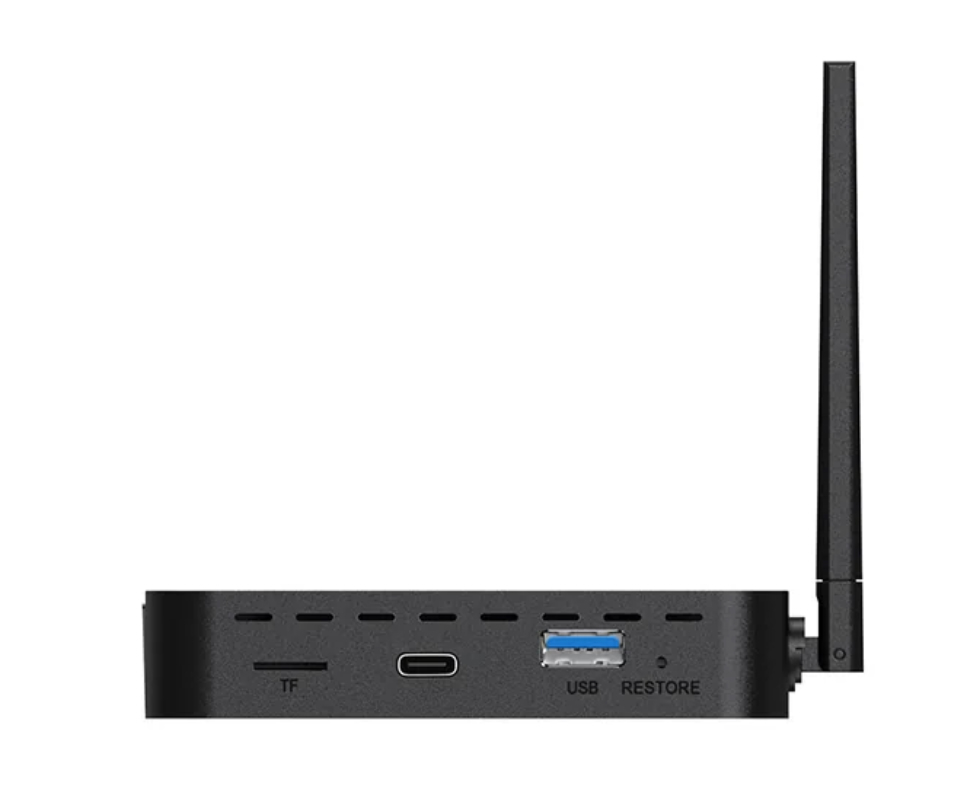
The SuperBox S8 Pro is one option for households comparing streaming hardware and everyday convenience features. Its listed specifications include Android 12.0, 4GB DDR RAM, 32GB eMMC storage, Bluetooth 5.2, and support for dual-band Wi-Fi 6. It also includes Ethernet connectivity and a backlit voice remote. These specifications describe the device’s hardware, but the overall experience will also depend on the television, network connection, software, and applications being used.
For older adults, the remote may be particularly worth exploring because illuminated buttons can be easier to identify in a darker room. Voice-control functions may also provide another way to interact with supported features, although their usefulness depends on the commands and applications available. During initial setup, family members can demonstrate the most relevant controls and help organize the home screen.
The Superbox S8 Pro also lists features such as Picture-in-Picture, Multi-View, recording, parental controls, and seven-day Time Shift functionality. These options may suit households with different viewing preferences, but availability and operation depend on compatible applications and content. Rather than activating every feature at once, begin with the functions the viewer expects to use.
Using Voice Control for Everyday Tasks
Voice control can offer an alternative to navigating every menu manually. Depending on the device and supported application, a viewer may be able to use voice commands to perform certain searches or access particular functions. This can be convenient for people who find small buttons difficult to distinguish or who prefer speaking to scrolling through several menus. Before relying on voice features, check which commands are supported and whether any setup or permissions are required.
A simple demonstration is often the best way to introduce voice interaction. Show the viewer where the microphone button is located, when it needs to be pressed, and how to speak a short, clear command. Practise with a familiar search or supported function rather than starting with complicated requests.
Voice control should complement, not completely replace, the remote. Background television sound, distance from the device, application limitations, and differences in speech recognition can affect results. Some actions may still require selecting an option on the screen. Keeping the basic remote controls familiar gives the viewer another way to navigate whenever voice interaction does not work as expected.
Comparing Storage and Everyday Viewing Options
Storage capacity matters when a household plans to install applications or use supported recording features. A device with more internal storage may provide additional room for compatible apps and locally stored data, although the amount actually available can differ from the advertised capacity. Older adults who use only a few familiar applications may not need extensive storage. It is more useful to consider intended usage than to choose a device solely because it offers a larger number.
For households comparing different models, the superbox s8 plus offers a listed 64GB of eMMC storage and 4GB DDR RAM. Its published specifications also include Android 12.0, Bluetooth 5.2, dual-band Wi-Fi 6, Ethernet, and a backlit remote. These details provide a starting point for comparison, but buyers should review the current product page to confirm the specifications, supported features, and included accessories before making a decision.
The S8 Plus also lists functions such as Picture-in-Picture, limited Multi-View, recording, parental controls, and seven-day Time Shift. As with other devices, individual functions may depend on the supported application, content source, and software configuration. A larger storage capacity does not automatically make a device easier to use.
Establishing a Simple Daily Viewing Routine
A predictable viewing routine can help older adults become comfortable with a new streaming device. For example, they might begin by turning on the television, selecting the correct input, and opening one familiar application. Once these steps become automatic, they can practise searching for a program or returning to the home screen.
It can also be useful to prepare a short, easy-to-read instruction sheet. Include only essential actions, such as turning on the equipment, choosing the correct input, opening a preferred application, adjusting volume, and returning to the home screen. Use familiar wording and keep the instructions in a convenient place near the television.
Routine maintenance should remain straightforward. Check that the device has power, confirm that the internet connection is working, and install software updates according to the manufacturer’s guidance. If an application stops responding, try returning to the home screen or restarting the device before changing more advanced settings.
Helping Older Adults Maintain Confidence
Learning a new technology takes time, and different people become comfortable at different speeds. Avoid rushing through setup or correcting every small mistake immediately. Instead, let the viewer practise at a comfortable pace and repeat important steps when necessary. Encouragement is more useful than expecting someone to remember every control after a single demonstration. The aim is to create a positive experience in which trying something unfamiliar feels manageable.
It is also helpful to tailor the device to the individual rather than expecting everyone to use the same setup. One person may appreciate voice commands, while another may prefer physical buttons and a simple home screen. Some viewers may enjoy exploring multiple applications, whereas others only want quick access to a few familiar programs. Adjusting the layout and teaching the most relevant functions can make the technology feel more personal and less intimidating.
