



A new TV hits the wall, the router moves to a cupboard, and cables start pooling behind furniture fast. You also add a camera, a doorbell, and a smart speaker, then notice dropouts. Most homes feel fine until the first install day forces quick choices.
When you book a top rated electrician in Bayside, you are not only paying for tools and time. You are paying for safe load checks, clean cable paths, and work that passes inspection later. That matters when your home tech list keeps growing each year.
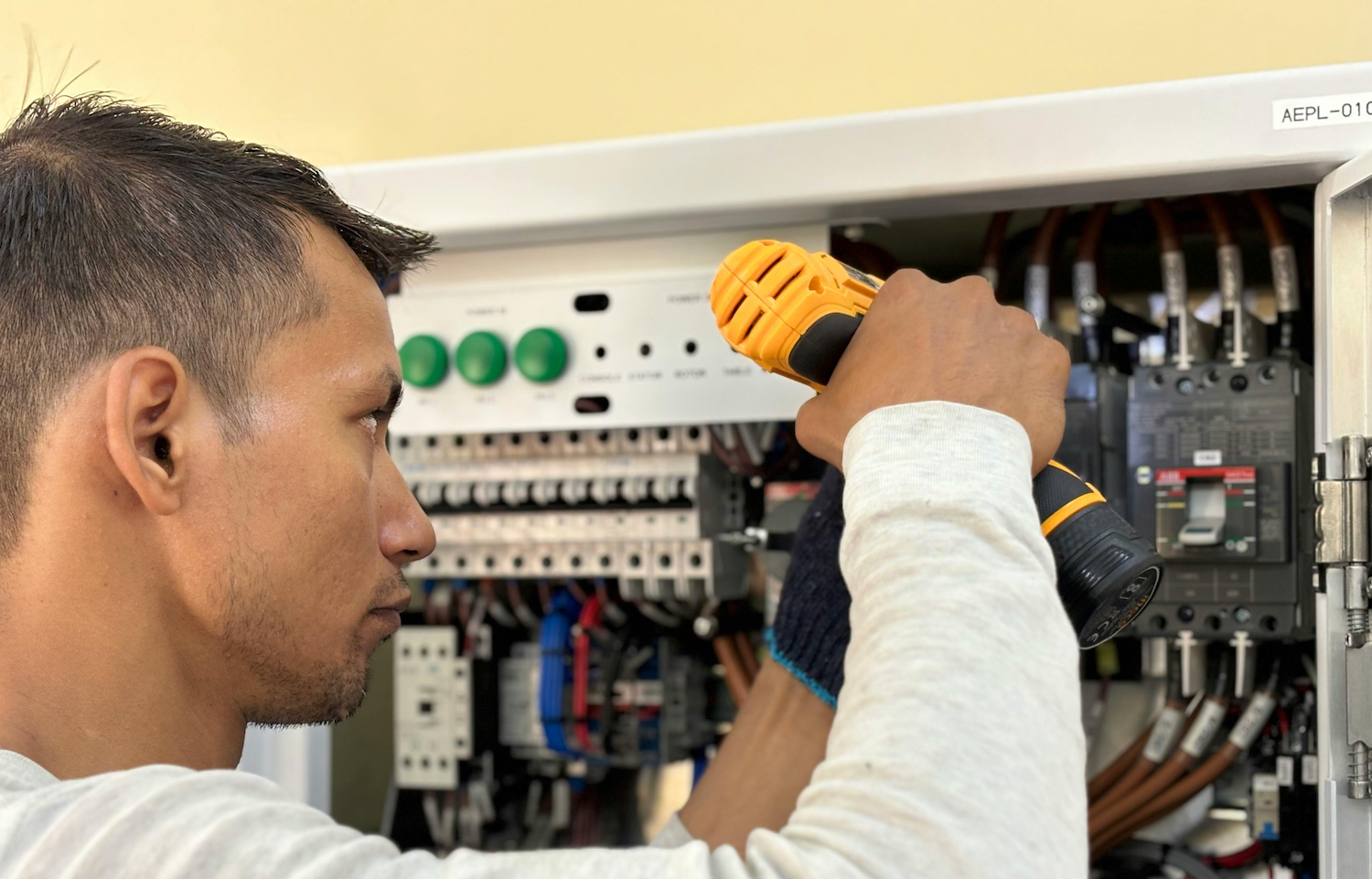
Photo by ranjeet
Start With A Clear Install Plan
Start by writing down every device you want installed, plus where it will sit and how it will connect. Add the power needs for each item, including chargers, hubs, and power boards. This quick list helps you spot weak points before anyone drills holes.
Next, map cable routes the same way you would map furniture placement in a room. Decide where cables can run inside walls, along skirting, or through the roof space. A clean path limits heat exposure, pinched cords, and later rework.
If your plan includes data cabling, check who is allowed to do that work in Australia. The ACMA explains that cabling work must be done by a registered cabler, or under direct supervision, with rules that protect networks and people. That rule matters for Ethernet runs, patch panels, and camera cabling.
Useful notes to include on your plan:
- Device name, location, and mounting height for comfort and sightlines
- Power point count in each room, plus spare capacity for later add ons
- Data points needed for fixed gear, like TVs, consoles, and cameras
Electrical Safety Checks That Matter
Home tech upgrades often fail because the switchboard is already busy. An electrician will look at circuit loads, breaker sizing, and whether there is room for new circuits. That is even more important with induction cooktops, air conditioners, and EV chargers.
Ask for plain answers about protection devices in the switchboard. Safety switches (RCDs) reduce shock risk, and surge protection can help during spikes from storms or grid events. A careful check can also reveal older wiring, loose connections, and heat damaged terminals.
Pay attention to where power points and isolation switches end up. A hidden point behind a wall mounted TV looks tidy, but it still needs safe access. The same goes for outdoor points for cameras, heat pumps, and garden lighting.
Good workmanship shows up in small habits during the job. Look for tidy cable dressing, correct labels in the switchboard, and a clean work area at handover. Some Melbourne firms, including Byrd Electrical, also talk openly about punctuality and clean up, which are worth asking about.
Clean Cabling And Network Basics
Many “tech problems” are really placement problems, not device problems. A router inside a metal cabinet can cut signal strength and cause buffering. A better spot, often central and higher, can improve coverage without buying new gear.
Wired connections still matter for stable video and gaming. A single Ethernet run to a TV zone can reduce Wi Fi traffic right away. It also supports wired backhaul for mesh systems, which helps larger homes and double storey layouts.
Plan cable separation so power and data do not fight each other. Keep low voltage runs away from mains wiring where possible, and avoid tight bends that stress the cable. If you need Power over Ethernet for cameras or access points, confirm the switch type and the cable rating early.
A simple install handover should include these details:
- Where cables run, and where joins or junctions sit inside ceilings or walls
- Login details stored safely, plus a reset plan for routers and hubs
- A list of spare ports and breaker labels that match the rooms clearly
Device Setup, Updates, And Cyber Hygiene
The install is not finished when the device turns on for the first time. Many smart devices ship with default passwords and older firmware. Leaving them unchanged is one of the easiest ways to invite trouble later.
Start with a short setup routine that you repeat for every new device. Change the default admin password, then update firmware before you connect extra services. If the device supports it, turn on automatic updates and remove old accounts.
Use a network setup that matches how your household works. A guest network can keep visitor phones away from cameras and storage devices. The Australian Cyber Security Centre also shares practical steps for securing devices, including basic settings that reduce common risks.
A quick setup checklist many households can follow:
- Update firmware, then change the admin password with a long passphrase
- Turn on two step sign in where it exists, and store backup codes safely
- Review permissions, then disable features you do not use or understand
Choosing The Right Mounting And Placement
A solid mount matters more than most people think, especially for large TVs and outdoor cameras. Plasterboard anchors can fail when the bracket takes constant vibration from doors, bass, or foot traffic. A better approach is fixing into studs, masonry, or a properly braced backing plate, then checking for level and torque.
Placement should also match how you use the room each day. A TV mounted too high can cause neck strain during long viewing sessions. A camera aimed at a bright window can wash out faces at night, even if the spec sheet looks good.
Heat and airflow matter for many devices, including routers, set top boxes, and gaming consoles. If you trap them in a closed cabinet, they can throttle performance and fail sooner. Leave breathing room, and avoid stacking power packs where heat builds up.
For exterior gear, plan for weather, glare, and access. Choose locations that allow cleaning the lens and replacing batteries without ladders on uneven ground. A quick placement review often prevents a second install visit later.
How To Judge Quality After The Install
A good install looks calm, and it stays quiet once the tools are packed away. Start by checking that cables are secured, not dangling near sharp edges or hot surfaces. You should not see tight bends, crushed sheathing, or exposed copper at terminations.
Next, test performance under real conditions, not just a quick power on. Stream video while someone else uses Wi Fi, then check if buffering appears or cameras drop frames. If you use smart lighting, test scenes at different times of day, and confirm switches still work when the app is offline.
Documentation is also part of quality, even in a small home job. Ask for a clear note of what was installed, where cables run, and which breakers feed new points. Keep model numbers and login details in a secure place, so future updates do not become guesswork.
Finally, check compliance items that protect you later. Confirm that safety switches cover the circuits that were touched, and that any new cabling work was done by qualified people. When the finish is neat and the records are clear, your next upgrade becomes simpler.
A Simple Final Check Before You Sign Off
Before you call the job done, walk through each room and test every device in normal use. Confirm stable Wi Fi, clean video feeds, and reliable switching for lights, points, and chargers. Check that cables sit flat, labels match circuits, and access points are reachable without moving heavy furniture. Keep the paperwork, device notes, and a photo of the switchboard layout, so later changes stay safe and tidy.
